Pages

Showing posts with label nexus. Show all posts

Saturday, September 22, 2018

Jenkins - Integrating with Nexus

Nexus is a repository manager. It allows you to proxy, collect, and manage your dependencies so that you are not constantly juggling a collection of JARs. It makes it easy to distribute your software. Internally, you configure your build to publish artifacts to Nexus and they then become available to other developers. You get the benefits of having your own 'central', and there is no easier way to collaborate.

In this article we will see how we can integrate Nexus repository manager with Jenkins and see how we can upload a package from Jenkins build to the nexus repository manager.
  1. Download the nexus plugin from here.
  2. Upload the nexus plugin into our Jenkins Server using Plugin Manager. From Jenkins Dashboard, Navigate to Manage Jenkins -> Plugin Manager. Proceed to the advanced tab, upload the hpi file using the Upload plugin.
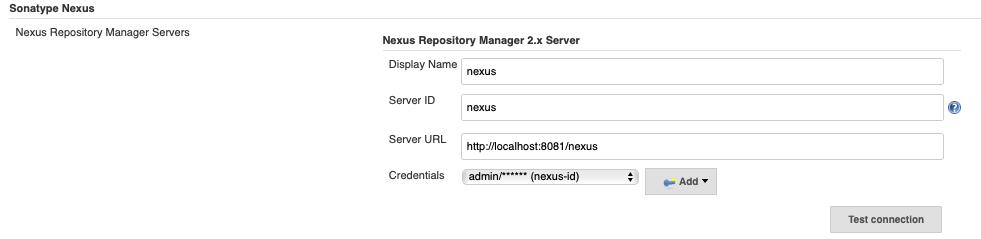
  3. Once the plugin is installed we will be seeing Nexus Configuration options in the Manage Jenkins -> Configure System. Configure the Sonatype nexus with details   
 
Fill the details like where the Server is running and also configure a credentials with user name and password for logging into the Nexus Manager. The credentials should be the same for logging in to the nexus repository manager. The default credentials for the nexus repository manager are “admin” and “admin”. Test the Connection to the server and if success, we have successfully created the integration between Jenkins and Nexus

4.  Configure the job to upload a package to the nexus repository. Choose the Add Post Build -> Nexus repository manager. We can see a publisher window added to the job like below. Some of the details will be available like Nexus Instance ( the same name that we have given in the nexus configuration in the above ), It will show us the nexus repositories available to upload our packages.

In the Package section, fill the necessary details like group , artifact , version etc based on your application. We also need to choose the File path from where we need to take the package and upload that to the Nexus repo manager. 

This is how we will be configuring the Nexus repository manager with Jenkins.  
Read More

Monday, September 26, 2016

Nexus Rest API

Nexus is a collection of services available for us to automate. With the services available we can integrate them in the work flow that we need. Nexus also exposes the services as Rest services so that we can use them to automate things. In this article we will see how we can use the nexus rest api to automate things.

While nexus has a rich set of Rest end points for every thing from core actions like storing artifacts in the repository to creating users and repositories, but the documentation is little touch to find. Here are the steps you need to take to access this documentation:
  1. Login as an Administrator
  2. In the Administration section of the left-hand menu, click on Plugin Console to open the Plugin Console.
  3. Once in the Plugin Console you will see a list of Nexus Plugins. Click on a plugin to view the APIs it provides.
  4. Once you select a plugin, you should see a list of APIs. For example, the video below shows the Core API, click on the link in the Plugin Console to view the REST API documentation.

We will use the CURL command available in Linux to make the rest calls.  Nexus uses a single end point with changing services to communicate on the rest.

/nexus/service/local is the endpoint and by adding the service after this we can make a rest call to automate different things. Below are the few nexus services that we can use to communicate

nexus_status_service: status
nexus_users_service: users
nexus_repositories_service: repositories
nexus_roles_service: roles

Lets see a few examples on making use of the nexus rest API

Simple Get calls

Retrieve the status of the Nexus Server -
curl http://localhost:8081/nexus/service/local/status

Retrieve the available nexus repositories

Authenticated REST - GET requests  
User Details– In order to retrieve some details we need to send the credentials details. Curl Command also allows us to pass the credentials. In order to retrieve a user details the Rest call needs the credentials and this can be done as,

Delete Repositories
We can also pass other HTTP parameter like DELETE using the curl command and make a Rest call as,

curl -X DELETE -v -u admin:admin123 http://localhost:8081/nexus/service/local/repositories/my-releases-xml

Post Calls – The most important call will be the Post call since we will be using this to create things. Lets see on creating a repository using the CURL post call along with the XML payload

Create a XML file new_user.xml with user details as,

<?xml version="1.0" encoding="UTF-8"?>
<user-request>
  <data>
    <userId>master</userId>
    <email>master@gmail.com</email>
    <status>active</status>
    <firstName>mind</firstName>
    <resourceURI>http://puppet.jas.com:8081/nexus/service/local/roles/repository-any-full</resourceURI>
    <roles>
      <role>npm-all-view</role>
    </roles>
    <lastName>minder</lastName>
    <password>test123</password>
  </data>
</user-request>

In the above snippet we are creating a new user master. In order to make the call we can call the CURL command as,

curl -i -H "Accept: application/xml" -H "Content-Type: application/xml; charset=UTF-8"  -v -d "@new_user.xml" -u admin:admin123 http://puppet.jas.com:8081/nexus/service/local/users

In the above command we are using the users service to make the rest call and create a user by passing the xml payload that we created in the file. Once we ran the curl command we can see the output as below which includes the necessary return code details.

* About to connect() to puppet.jas.com port 8081 (#0)
*   Trying 172.16.202.95...
* Connected to puppet.jas.com (172.16.202.95) port 8081 (#0)
* Server auth using Basic with user 'admin'
> POST /nexus/service/local/users HTTP/1.1
> Authorization: Basic YWRtaW46YWRtaW4xMjM=
> User-Agent: curl/7.29.0
> Host: puppet.jas.com:8081
> Accept: application/xml
> Content-Type: application/xml; charset=UTF-8
> Content-Length: 424
>
* upload completely sent off: 424 out of 424 bytes
< HTTP/1.1 201 Created
HTTP/1.1 201 Created
< Date: Wed, 31 Aug 2016 08:27:23 GMT
Date: Wed, 31 Aug 2016 08:27:23 GMT
< X-Frame-Options: SAMEORIGIN
X-Frame-Options: SAMEORIGIN
< X-Content-Type-Options: nosniff
X-Content-Type-Options: nosniff
< Server: Nexus/2.13.0-01 Noelios-Restlet-Engine/1.1.6-SONATYPE-5348-V8
Server: Nexus/2.13.0-01 Noelios-Restlet-Engine/1.1.6-SONATYPE-5348-V8
< Content-Type: application/xml; charset=UTF-8
Content-Type: application/xml; charset=UTF-8
< Content-Length: 388
Content-Length: 388

<
<user-response>
  <data>
    <resourceURI>http://puppet.jas.com:8081/nexus/service/local/users/master</resourceURI>
    <userId>master</userId>
    <password>test123</password>
    <firstName>mind</firstName>
    <lastName>minder</lastName>
    <status>active</status>
    <email>master@gmail.com</email>
    <roles>
      <role>npm-all-view</role>
    </roles>
  </data>
* Connection #0 to host puppet.jas.com left intact
</user-response>

Besides passing the XML file as payload , nexus also accepts the JSON content as payload even and CURL command allows us to do so. Create a file repo.json with the repository details as,

[puppet@root$:/test]$  cat repo.json
{
    "data": {
        "repoType": "proxy",
        "id": "somerepo",
        "name": "Some Repo Name",
        "browseable": true,
        "indexable": true,
        "notFoundCacheTTL": 1440,
        "artifactMaxAge": -1,
        "metadataMaxAge": 1440,
        "itemMaxAge": 1440,
        "repoPolicy": "RELEASE",
        "provider": "maven2",
        "providerRole": "org.sonatype.nexus.proxy.repository.Repository",
        "downloadRemoteIndexes": true,
        "autoBlockActive": true,
        "fileTypeValidation": true,
        "exposed": true,
        "checksumPolicy": "WARN",
        "remoteStorage": {
            "remoteStorageUrl": "http://puppet.jas.com:8081/local",
            "authentication": null,
            "connectionSettings": null
        }
    }
}

Now we can run the CURL command as,

curl -H "Content-Type: application/json" -X POST -d @virtual.json -u admin:admin123 http://puppet.jas.com:8081/nexus/service/local/repositories

In the above command we have changed the content-type to json unlike xml.

That’s all about using the nexus Rest api and curl command.  Below are the few examples on using nexus Rest api

Get Single Repository Details
curl -k http://puppet.jas.com:8081/nexus/service/local/repositories/releases -u

Get Repository Status
curl -k http://puppet.jas.com:8081/nexus/service/local/repository_statuses -u admin:admin123

Getting a list of all users, now with authenticating as admin user
curl -X GET -u admin:admin123 http://localhost:8081/nexus/service/local/users

Retive the account Details
curl -k http://puppet.jas.com:8081/nexus/service/local/user_account/admin -u admin:admin123

Get the list of users available
curl -X GET -u admin:admin123 http://172.16.202.96:9091/nexus/service/local/users

Get the list of repositories available
curl http://172.16.202.96:9091/nexus/service/local/repositories

Hope this Helps.
Read More

Saturday, August 20, 2016

Nexus-Maven Integration

In this article we will see how we can integrate Maven with nexus and push our artifacts to the nexus repository.

1. Install and configure maven.
2. Once maven is configured , a local repository is created. The maven local repository is a local folder that is used to store all your project’s dependencies (plugin jars and other files which are downloaded by Maven). In simple, when you build a Maven project, all dependency files will be stored in your Maven local repository.

By default, Maven local repository is default to .m2 folder:
  1. Unix/Mac OS X – ~/.m2
  2. Windows – C:\Documents and Settings\{your-username}\.m2 
The local repository contains a settings.xml file which contains the configuration dertails.

3. Make changes to the settings.xml file for making our artifacts go to the Nexus repository.
There will 2 users ID admin for admin operations and deployment for deploy operations.

Add the below content to the ~/.m2/setting.xml as

Add the nexus Mirror with the location where nexus is running as,

  <mirrors>
    <mirror>
      <id>nexus</id>
      <mirrorOf>*</mirrorOf>
      <name>Human Readable Name for this Mirror.</name>
      <url>http://puppet.jas.com:8081/nexus/content/groups/public</url>
    </mirror>
  </mirrors>

Add a server location which  Specifies the authentication information to use when connecting to a particular server, identified by

 <server>
    <id>nexus</id>
    <username>deployment</username>
    <password>deployment123</password>
 </server>

4. Once the changes are done. let’s try to build a artifact and push to the nexus. Create a maven application or Download the javaee7-simple-sample application from the GITHUB location https://github.com/javaee-samples/javaee7-simple-sample

Add the distribution Management element to the pom.xml file as

 <distributionManagement>
        <repository>
            <id>nexus</id>
            <name>Internal Releases</name>
            <url>
http://puppet.jas.com:8081/nexus/content/repositories/releases/</url>
        </repository>
       <snapshotRepository>
            <id>nexus</id>
            <name>Internal Snapshot Releases</name>
            <url>
http://puppet.jas.com:8081/nexus/content/repositories/snapshots/</url>
        </snapshotRepository>
   </distributionManagement>

In the URL’s, add the URL where the nexus Repository is running.

5. Once the changes are done. Run the “mvn clean deploy” command 
Read More

Nexus – HTTPS Configuration

Since we use nexus as a part of warehouse for our organization that contains all our building blocks and software, it is very important to secure the access to nexus. Nexus is normally access over HTTP. If we do the communications over normal http, this traffic can be intercepted with any network sniffer and credentials can be read. Using Secure Socket Layer (SSL) communication with the repository manager is an important security feature and a recommended best practice. 

In this article we will see how we can configure nexus over HTTPS.

1. add the ssl port to the nexus.properties file
application-port-ssl=9443
application-port-ssl=9091

2. We need to create a Key store file for configuring the nexus with ssl. We need to have a password for creating the keystore. The same password needs to be used in the configuration file too. If we use the plain text password in configuration file it may lead to a security breach. So we Obfuscate password.

Password can be Obfuscated using,

[root@puppet lib]# java -cp NEXUS_HOME/lib/jetty-util-8.1.16.v20140903.jar org.eclipse.jetty.util.security.Password changeit changeit
OBF:1vn21ugu1saj1v9i1v941sar1ugw1vo0
MD5:b91cd1a54781790beaa2baf741fa6789

jetty-util-8.1.16.v20140903.jar - NEXUS_HOME/lib contains the jetty-util jar. Use thejar based on the version. I have the jetty-util-8.1.16.v20140903.jar in the nexus iam using.

3. Now once we have the password obfuscated we now create the keystore using the same password as above “changeit”.

keytool -genkey -noprompt -keystore NEXUS_HOME/conf/keystore.jks -alias nexus-alias -keyalg RSA -keypass changeit -storepass changeit -dname "CN=master.apple.com, OU=ID, O=artl, L=jags, S=macnhala, C=GB" 

Now the keystore file is stored in NEXUS_HOME/conf location.

4. Now make the changes to the jetty-https.xml configuration for the addConnector section as,

<Set name="keyStore"> NEXUS_HOME/conf/keystore.jks</Set>
<Set name="trustStore"> NEXUS_HOME/conf/keystore.jks</Set>
<Set name="keyStorePassword">1vn21ugu1saj1v9i1v941sar1ugw1vo0</Set>
<Set name="keyManagerPassword">1vn21ugu1saj1v9i1v941sar1ugw1vo0</Set>
<Set name="trustStorePassword">1vn21ugu1saj1v9i1v941sar1ugw1vo0</Set>

For the Store password, we change the value with Obfuscated password.

5. Don’t make any changes to the jetty-http-redirect-to-https.xml file. This file is used to redirect http to https automatically. Whenever we access the nexus URL with http it automatically directs to https.

6. Make the last changes to the NEXUS_HOME/bin/jsw/conf/wrapper.conf file with below contents as,

wrapper.app.parameter.3= NEXUS_HOME/conf/jetty-https.xml
wrapper.app.parameter.4= NEXUS_HOME/conf/jetty-http-redirect-to-https.xml


7. Start the nexus application using NEXUS_HOME/bin/nexus restart

8. Access the application using http://localhost:9091/nexus which will automatically redirect to https://localhost:9443/nexus


More to Come, Happy learning J
Read More

Artifactory - Nexus


Before starting to understand what nexus is and how it can be used we need to understand what a software repository is. A Software repository is a storage location from which software packages may be retrieved and installed on the computer (according to WIKI).

So an artifactory repository is a binary repository manager. Much like source control that we use for our code (SVN, GIT) we use artifactory repository manager for storing and sharing our binary artifacts like jar and war. Artifactory is also a place where you can put a shared library so that it is easily accessible in other projects across the enterprise.

Many programming languages maintain their artifactory so that other users can download from that artifactory repository. An artifactory provide Operators on repositories like a package management system, tools intended to search for, install and otherwise manipulate software packages from the repositories

So why do we need a artifactory repository tool.

1. Re-building from source introduces points of failures. BY having the artifact in a binary repository manager we can down and use which will be a versioned copy of the tested artifact

2. Since the binaries are version it is easy to have multiple versions of libraries so that all projects do not have to be on the same version.

Repository types – There are different types of repositories available in nexus such as,

Virtual repositories - “virtual repositories” are proxies to all of the “well known” repositories on the internet. This give you access to most of the public shared libraries such as Apache Commons, Spring, Hibernate, etc..; through one conduit.

Proxy Repository - Is a repository with the type proxy, also known as a proxy repository, is a repository that is linked to a remote repository.Any request for a component is verified against the local content of the proxy repository. If no local component is found, the request is forwarded to the remote repository. The component is then retrieved and stored locally in the repository manager, which acts as a cache. Subsequent requests for the same component are then fulfilled from the local storage, therefore eliminating the network bandwidth and time overhead of retrieving the component from the remote repository again.

Hosted Repository - A repository with the type hosted, also known as a hosted repository, is a repository that stores components in the repository manager as the authoritative location for these components.

In this article we will see how we can configure nexus repository and use,

1.  Nexus comes with 2 flavors “Nexus Repository Manager Pro” and “Nexus Repository Manager OSS”.

Nexus Repository Manager OSS is a fully-featured repository manager which can be freely used, customized, and distributed under the Eclipse Public License.

Nexus Repository Manager Pro is a distribution with features that are relevant to large enterprises and organizations which require complex procurement and staging workflows in addition to more advanced LDAP integration, Atlassian Crowd support, and other development infrastructure. This is available for a 30 days trail.

2. Download the “Nexus Repository Manager OSS” from http://www.sonatype.com/download-oss-sonatype

3. Unzip or Tar based on the file you downloaded using
unzip nexus-2.13.0-01-bundle.zip OR tar xvzf nexus-2.13.0-01-bundle.tar.gz

4. Before starting nexus ,we need to make a few changes to the nexus.properties file in NEXUS_HOME/conf/nexus.properties

Change the nexus-work=<Location to store the nexus runtime Data>
Change the application-port to a port number where we can access the nexus Browser.

4. Once saved, start the nexus using NEXUS_HOME/bin/nexus start.

More to Come, Happy learning J
Read More