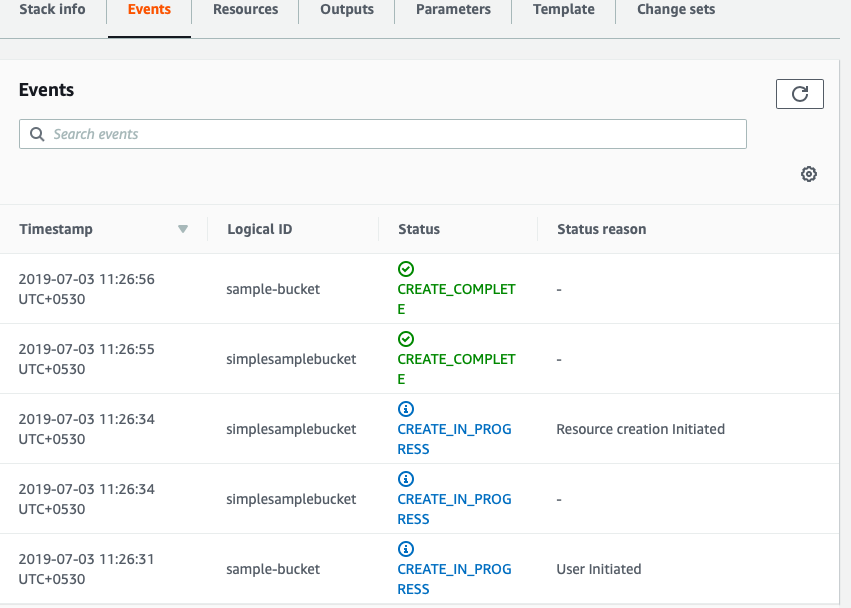
In this second article of Cloud formation, we will understand some more details of the template and various sections that can be used in the template.
We already know that the definition of the infrastructure is done inside a template file. The template is a JSON format file that describes our infra. This template has to adhere the AWSTemplateFormat guidelines.
1. The AWSTemplateFormatVersionsection (optional) identifies the capabilities of the template.
{
“AWSTemplateFormatVersion”: “2010-09-09”
}
2. Description allows to write comments for the template file that we are creating.
{
“AWSTemplateFormatVersion” : “2010-09-09”,
“Description” : “example template”
}
3. Metadata allows us to include more details about the template. Additional details for the resources that we create will be added in this optional metadata section.
"Metadata" : {
"Instances" : {
"Description" : "this is for app servers"
}
}
4. Parameter allows us to customise the template by passing values as inputs when we are creating the stack. This way we can pass different values each time when building the stacks. A parameter can be defined as,
"InstanceType" : {
"Type" : "String",
"Default" : "t2.micro",
"Description" : "Type of EC2 instance to launch"
}
"KeyName" : {
"Description" : "EC2 Key Pair for SSH Access
"Default" : "sample",
"MinLength": "1",
"MaxLength": "64",
"AllowedPattern" : "[-_ a-zA-Z0-9]*",
}
In the above snippet we are defined a parameter called “InstanceType”. The parameter type is the string which means we will be passing a string value as input when building the stack. The parameter supports multiple properties like providing default values, length, max and min values etc.
The above InstanceType parameter is string type and default value it t2.micro. If we don't pass a string value during stack build, the default value “t2.micro” will be used.
Accessing the parameter - Now that we have defined the parameter but there should be a way to use that parameter ( if it is passed or default value ). To access the parameter we can write the Resources section as below,
"Ec2Instance" : {
"Type" : "AWS::EC2::Instance",
"Properties" : {
"InstanceType" : { "Ref" : "InstanceType" },
"ImageId" : "ami-0ff8a91507f77f867"
}
}
In the above case, we can see that the InstanceType is referring the paramter with the name “InstanceType”.
5. Mapping are type of logical constructs in cloudformation. They can be taught as a dictionary map.
Mappings are another logical construct in CloudFormation. Mappings can be thought of as a dictionary map. It’s sort of like a 2-level case statement. The mapping must be exactly 2 levels
"Mappings" : {
"RegionMap" : {
"us-east-2a" : { "32" : "ami-00ed77e0e02f15966", “64”:”ami-00ed77e0e02f15966” },
"us-west-2b" : { "32" : "ami-0bdb828fd58c52235", “64” : “ami-0bdb828fd58c52235” }
}
}
These mapping work as a conditional parameter values. It matches a key to the value. The RegionMap mapping matches the regions names to the ami instance. If we use the “us-east-2a” region and use this map, the AMI key will have the value “ami-00ed77e0e02f15966”
Using the mapping - Once we define the mapping, in order to use them we will use the “Fn::FindInMap” function. A Resource section using the above mapping can be written as ,
"Resources" : {
"sampleEc2Instance" : {
"Type" : "AWS::EC2::Instance",
"Properties" : {
"ImageId" : {
"Fn::FindInMap" : [ "RegionMap", { "Ref" : "AWS::Region" }, "32"]
},
"InstanceType" : "m1.small"
}
}
}
In the above snippet, aws will return the ami id based on the region we are in. for example if we are in region us-east-2a and the key passed is 32. So aws will go the mapping and get the value (ami-00ed77e0e02f15966) associated with the key “32” for the region us-east-2a.
5. Conditionals are used to define values based on conditions. For example we can get a value from parameter and decide what to do after that. Lets see a basic example on how conditionals can be used,
Lets define a Parameter with type as below,
"Parameters" : {
"Type" : {
"Description" : "Type of the environment",
"Default" : "test",
"Type" : "String",
"AllowedValues" : ["prod", "dev", "test"],
"ConstraintDescription" : "must specify prod, dev, or test."
}
},
Now write a condition statement checking the values passed and setting the type. If the passed value is “prod” ( smaller case), a key “Prod” is defined as below,
"Conditions" : {
"Prod" : {"Fn::Equals" : [{"Ref" : "Type"}, "prod"]},
"Dev" : {"Fn::Equals" : [{"Ref" : "Type"}, "dev"]}
"Test" : {"Fn::Equals" : [{"Ref" : "Type"}, "test"]}
}
This condition can be used in the Resources section as below. We are checking if the condition “Prod” is set. If the value passed as parameter is “prod”, then the condition “Prod” is set and if this is set, we are defining the InstanceType and ImageId with values.
"Resources:" {
"ProdInstance" : {
"Type" : "AWS::EC2::Instance",
"Condition" : "Prod",
"Properties" : {
"InstanceType" : "m3.xlarge",
"ImageId" : { "Fn::FindInMap" : [ "RegionMap", { "Ref" : "AWS::Region" }, "32" ]}
}
}
6. Pseudo Parameters are parameters that are predefined by AWS and we can use them in our templates to get values. Values like Availability Zone,Regions, account ID etc are defined as Pseudo parameters. In the above case of mapping , resource section has Pseudo parameter called “AWS::Region” which grabs the current region where we are working. There are other pseudo parameters for our usage.
7. Intrinsic functions are used to pass values that are not available until runtime. One such function is Fn::FindInMap function which gets the value associated with a key that is defined in mapping.
We have seen the below intrinsic function usage in the mapping section and in resource section as below,
“ImageId” : { “Fn::FindInMap” : [ “RegionMap”, { “Ref” : “AWS::Region” }, “32”]},
There are other intrinsic function available for our usage.
5. Resources is the major section in the template. This includes various services that we want to define as a part of our infrastructure. This can be from a Ec2 instance to an Sqs Queue. Each resource that we declare include 3 parts,
A logical name like “myInstance”
A resource Type like “AWS::EC2:Instance” ,“AWS::RDS::DBInstance” etc
Properties for that resources
A simple resource definition will be like,
"Resources" : {
"simplesamplebucket" : {
"Type" : "AWS::S3::Bucket"
}
}
8. Outputs will return one or more values after the stack is completely executed. For example we may use a stack to launch multiple Ec2 instances and in the output section we can return the ip address associated with the instance that we launched recently.
"Outputs" : {
"InstanceId" : {
"Description" : "InstanceId of the newly created Ec2 instance",
"Value" : { "Ref" : "Instance" }
}
}
In the above snippet we are trying to grab the instanceId from the Ec2 instance and referring the Instance Resource defined. Our resource section will have resource defined with name “Instance” and we are outputting the value from that.
Hope this helps in